Most people use computers every day like they’re driving a manual car stuck in first gear.
Click. Move mouse. Open tab. Click again. Minimize. Right click. Search. Repeat.
Meanwhile, power users are flying through work at double the speed using keyboard shortcuts most people have never heard of.
And no — this is not another boring list of Ctrl + C and Ctrl + V.
You already know copy and paste.
This is about the hidden shortcuts that quietly save minutes every hour — the kind that make people ask:
“Wait… how did you do that so fast?”
If you spend your day inside a browser, writing emails, working remotely, coding, studying, editing documents, or juggling 27 Chrome tabs while pretending you’re organized, these shortcuts will change how you use your computer.
Why Keyboard Shortcuts Matter More Than People Think
Here’s the thing people underestimate:
Productivity is rarely destroyed by one big distraction.
It dies from tiny delays repeated hundreds of times daily.
Every time you:
- move your hand to the mouse
- search for a tab
- right-click for an option
- drag windows around manually
…you lose a few seconds.
A few seconds multiplied across weeks becomes hours.
According to research from Microsoft, users who rely heavily on keyboard shortcuts can significantly reduce task completion time and improve workflow efficiency. Professional developers, writers, analysts, and editors rely on shortcuts because speed compounds.
And honestly? Once you learn a few good ones, using the mouse starts feeling painfully slow.
Windows Shortcuts Most People Never Learn
1. Windows + V — Your Clipboard History
This one feels illegal the first time you use it.
Most people think copy-paste only remembers one thing.
Wrong.
Press:
textWindows + V
…and Windows opens your clipboard history with everything you copied recently.
That means:
- multiple copied texts
- links
- passwords
- snippets
- screenshots
No more:
“Wait, what did I copy before this?”
You may need to enable it the first time.
Once you start using this, normal copy-paste feels primitive.
2. Windows + Shift + S — Instant Screenshot Tool
Forget opening Snipping Tool manually.
Press:
textWindows + Shift + S
Your screen dims instantly and lets you:
- capture part of the screen
- copy it immediately
- paste directly into WhatsApp, Slack, Word, or email
This is dramatically faster than taking full screenshots and cropping later.
3. Windows + . — Hidden Emoji and Symbols Panel
Yes, Windows has a built-in emoji panel.
But the real superpower is symbols.
Press:
textWindows + .
You’ll get:
- emojis
- special symbols
- em dashes
- mathematical symbols
- currency signs
Extremely useful for writers, developers, and students.
4. Ctrl + Shift + Esc — Directly Open Task Manager
Most people still use:
textCtrl + Alt + Delete
That’s the long route.
This shortcut opens Task Manager immediately:
textCtrl + Shift + Esc
Perfect when Chrome decides to consume the entire planet’s RAM.
5. Windows + Arrow Keys — Instant Window Management
This shortcut quietly turns you into a multitasking machine.
Use:
textWindows + Left Arrow
Windows + Right Arrow
To snap windows side-by-side instantly.
Add:
textWindows + Up
Windows + Down
To maximize or minimize quickly.
Especially useful on ultrawide monitors or during research.
Mac Shortcuts That Feel Like Cheat Codes
Mac users love pretending shortcuts are “intuitive.”
Some are.
Many are hidden.
Here are the genuinely useful ones.
1. Command + Shift + 4 — Selective Screenshot
This lets you capture only part of your screen instantly.
Even better: after pressing it, hit the spacebar to capture specific windows cleanly.
Designers and content creators use this constantly.
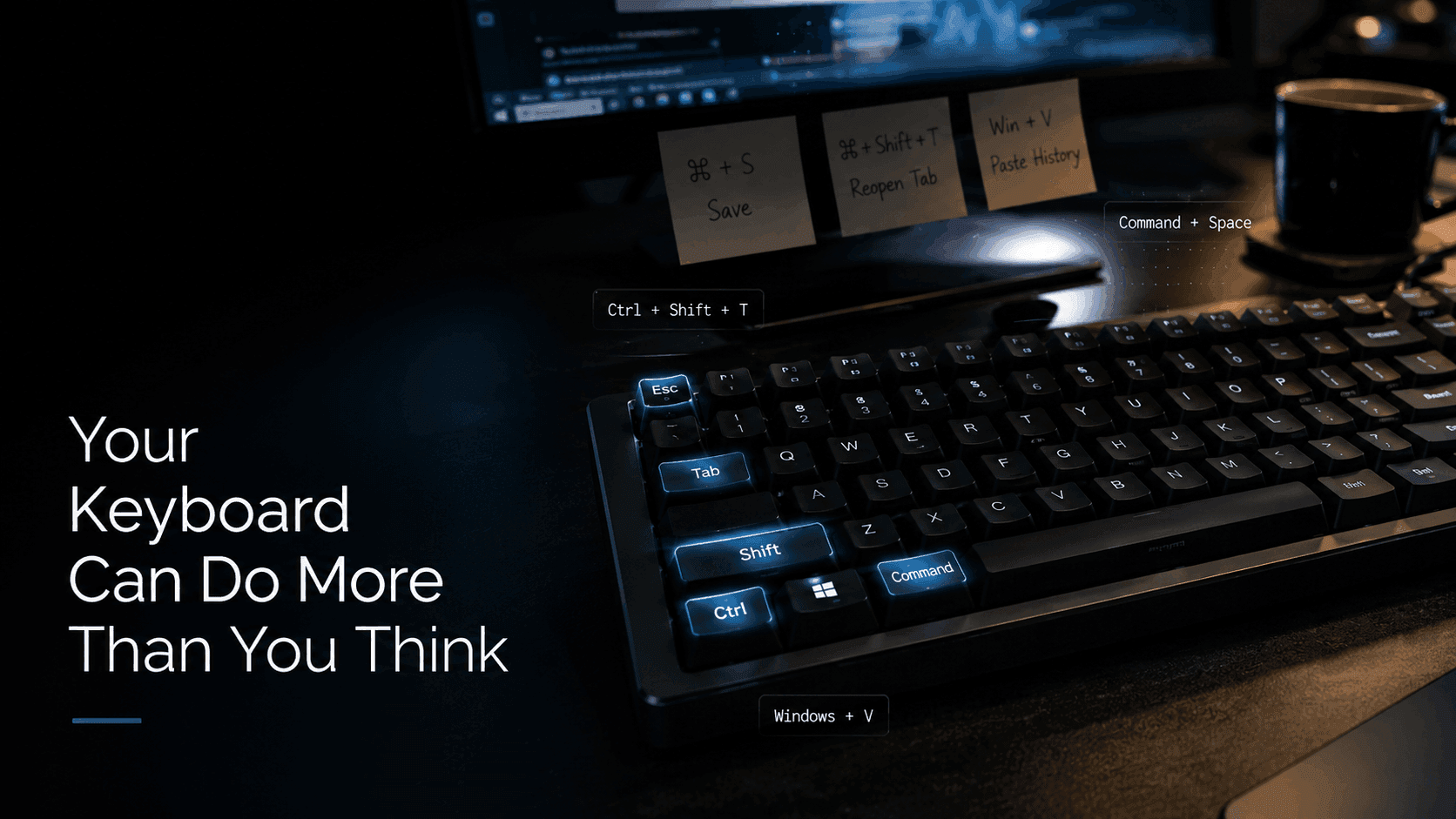
2. Command + Space — Spotlight Search
This is probably the most underrated productivity tool on macOS.
Press:
textCommand + Space
You can:
- launch apps
- search files
- calculate math
- convert currency
- find settings
- search definitions
Fast Mac users barely touch Finder anymore.
3. Option + Shift + Volume Keys
This adjusts volume in tiny precise increments.
Most people never discover this accidentally.
Useful during editing, meetings, or late-night work.
4. Command + Tab
Yes, many know this one.
But most people don’t use it properly.
Keep holding Command after pressing Tab, then:
- use arrow keys
- press
Qto quit apps - press
Hto hide apps
It becomes an app-control center.
5. Command + Shift + .
This reveals hidden files in Finder.
Developers know this shortcut well.
Regular users discover it once and immediately feel like hackers.
Chrome Shortcuts That Save Ridiculous Amounts of Time
Most people live inside Chrome all day without realizing it has productivity shortcuts everywhere.
1. Ctrl + Shift + T — Reopen Closed Tabs
You accidentally close a tab.
Pain.
Then you remember:
textCtrl + Shift + T
Your tab returns instantly.
Press repeatedly to restore multiple closed tabs.
This shortcut alone has probably saved millions of people from panic attacks.
Mac equivalent:
textCommand + Shift + T
2. Ctrl + L — Jump to Address Bar Instantly
No mouse needed.
Press:
textCtrl + L
Then immediately:
- search Google
- paste links
- type URLs
Tiny shortcut. Massive repetition savings.
3. Ctrl + Tab
Switch between tabs rapidly without touching the mouse.
Once you build the habit, browsing becomes dramatically faster.
4. Ctrl + Shift + N
Open Incognito mode instantly.
Useful for:
- testing websites
- signing into another account
- troubleshooting extensions
Not just for “private browsing,” despite the internet pretending otherwise.
5. Alt + Click on Links (Windows)
Downloads the linked file instantly instead of opening it.
One of Chrome’s lesser-known tricks.
The Real Productivity Secret: Fewer Interruptions
Here’s what most people misunderstand about shortcuts.
The value is not just speed.
It’s focus preservation.
Every time you move from keyboard to mouse, your brain performs a tiny context switch.
Tiny interruptions feel harmless.
But over hours, they fragment concentration.
Keyboard shortcuts reduce friction between thought and action.
That’s why developers, writers, video editors, cybersecurity professionals, and traders obsess over them.
The less friction between your brain and your tools, the faster you work.
A Better Way to Learn Shortcuts
Don’t try to memorize 50 shortcuts in one day.
That never works.
Instead:
Week 1
Pick 3 shortcuts only.
Use them repeatedly until they become automatic.
Week 2
Add 2–3 more.
Your brain learns through repetition, not reading.
The best shortcut is the one you actually remember under pressure.
The Shortcuts Worth Memorizing First
If you only learn five from this article, make them these:
| Shortcut | What It Does |
|---|---|
Windows + V | Clipboard history |
Ctrl + Shift + T | Restore closed tabs |
Ctrl + Shift + Esc | Open Task Manager |
Command + Space | Mac Spotlight Search |
Windows + Shift + S | Instant screenshots |
These alone can noticeably change your workflow within days.
Final Thoughts
Most people buy productivity apps when what they really need is better habits.
Keyboard shortcuts are one of the rare productivity improvements that are:
- free
- immediate
- practical
- cumulative
You won’t save three hours today.
But you will save seconds hundreds of times.
And that adds up faster than most people realize.
The best part?
Once a shortcut becomes muscle memory, you stop thinking about it entirely.
Your computer simply starts feeling faster.