There are two kinds of internet users.
The first group has one terrible password they reuse everywhere.
Something like:
john123
Password@2024or the legendary:
12345678
The second group forgets passwords constantly and spends half their life pressing:
“Forgot Password?”
Neither group is winning.
And honestly, modern internet life has become ridiculous.
You need passwords for:
- banking
- Netflix
- work accounts
- government services
- shopping apps
- social media
- WiFi routers
- cloud storage
- delivery apps
- streaming services
- school portals
At some point, people stop creating secure passwords because their brains simply cannot store that many combinations.
So they reuse the same password everywhere.
That’s exactly what hackers are hoping for.
The good news?
You no longer need to remember dozens of passwords manually.
This is where password managers quietly become one of the best security tools normal people can use.
And despite sounding “technical,” setting one up now takes less time than resetting your Instagram password for the fifth time this month.
What a Password Manager Actually Does
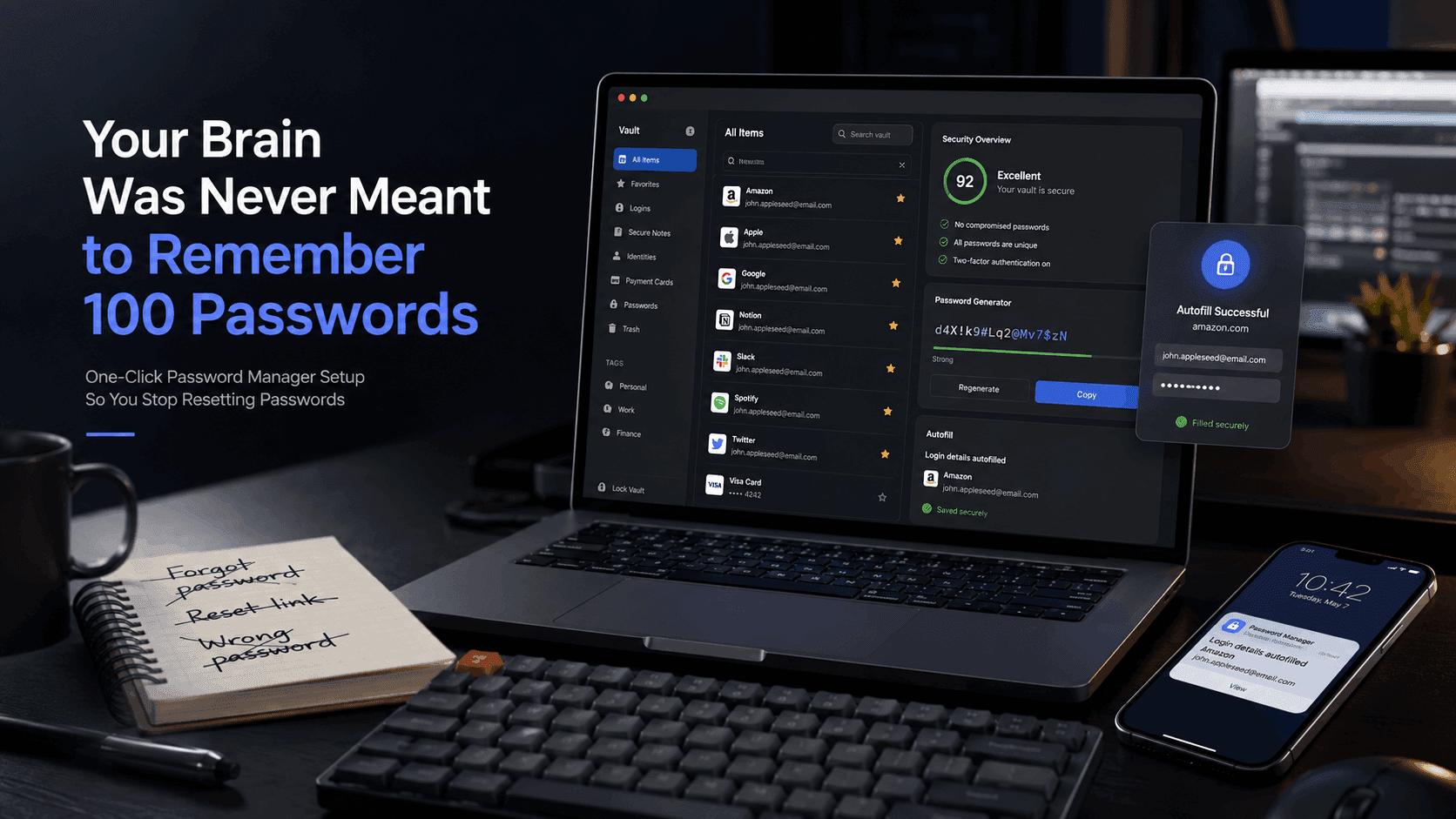
A password manager is basically a secure digital vault.
Instead of remembering 100 passwords, you remember one master password.
The password manager handles everything else:
- generating strong passwords
- storing them securely
- autofilling logins
- syncing across devices
- warning you about weak or leaked passwords
Think of it like hiring a professional bodyguard for your online accounts.
Except this bodyguard never sleeps and doesn’t ask for transport money.
The Real Problem: Humans Are Bad at Passwords
Cybersecurity experts have been saying the same thing for years:
Humans are predictable.
People reuse passwords because it’s convenient.
The problem is that once one website gets hacked, attackers immediately try the same email/password combination on:
- Gmail
- banking apps
- PayPal
- work accounts
This is called credential stuffing, and it works frighteningly well.
According to Google and Microsoft security research, password reuse remains one of the biggest causes of account compromise worldwide.
One leaked password can become a domino effect.
That’s why unique passwords matter.
But no human realistically remembers 70 unique complex passwords.
Password managers solve that problem.
Why Most People Avoid Password Managers
Ironically, many people avoid password managers because they think:
- “It sounds complicated.”
- “What if I forget the master password?”
- “Isn’t it risky putting everything in one place?”
Reasonable concerns.
But here’s the reality:
Using the same weak password everywhere is dramatically riskier than using a reputable password manager.
Modern password managers use strong encryption designed specifically for protecting credentials.
And most of them are built to be extremely beginner-friendly now.
In fact, many people already use one without realizing it:
- Google Password Manager in Chrome
- Apple iCloud Keychain on iPhone/Mac
- Microsoft Edge password storage
Dedicated password managers simply do it better.
The Easiest Password Manager Setup for Beginners
If you want the simplest possible setup, here’s the modern approach.
Option 1: Use Built-In Password Managers (Easiest)
For Chrome Users
If you’re already signed into Chrome, most of the setup is practically automatic.
Chrome can:
- save passwords
- suggest strong passwords
- autofill logins
- sync across devices
Minimal effort required.
For iPhone and Mac Users
Apple has quietly made this one of the easiest password systems available.
It integrates directly into:
- Safari
- apps
- iPhone logins
- Mac devices
The experience feels almost invisible once enabled.
For Windows + Edge Users
Use Microsoft Autofill and Password Manager
Microsoft has improved this significantly over the last few years.
Especially if you already live inside the Microsoft ecosystem.
Want More Features? Use a Dedicated Password Manager
If you want stronger features and better cross-platform support, these are popular options:
These tools offer:
- encrypted vaults
- password sharing
- breach monitoring
- secure notes
- device syncing
- two-factor authentication support
For most people, Bitwarden is one of the best free starting points.
Simple. Clean. Reliable.
The “One-Click” Setup Most People Want
Modern password managers are far easier than people expect.
The process usually looks like this:
Step 1
Create your account.
Step 2
Install the browser extension.
Step 3
Import saved passwords automatically from Chrome, Safari, or Edge.
Step 4
Start logging in normally.
That’s it.
From there, the manager starts:
- saving credentials
- autofilling forms
- suggesting stronger passwords automatically
Most people are fully operational within 10 minutes.
The One Password You MUST Remember
Here’s the important part.
Your master password matters a lot.
Do NOT make it:
- short
- predictable
- reused elsewhere
The best master passwords are:
- long
- memorable
- unique
Example approach:
CoffeeTrainRiverLaptop1998
Long passwords are often stronger than complicated unreadable ones.
And please: do not store your master password in your Notes app titled:
“PASSWORDS FINAL FINAL REAL.txt”
Humanity has suffered enough already.
Why Password Managers Save More Than Security
People focus on the security benefits.
But the productivity benefits are honestly just as important.
You stop:
- resetting passwords constantly
- typing credentials repeatedly
- getting locked out of accounts
- wasting time recovering logins
Over months, this saves an absurd amount of frustration.
Especially if you work online daily.
The Feature Most People Don’t Know Exists
Many password managers now alert you when your credentials appear in known data breaches.
Meaning: if a website gets hacked and your password leaks online, the manager warns you immediately.
That alone can prevent serious damage.
Some tools even show:
- weak passwords
- duplicated passwords
- old passwords needing updates
It’s like having a security audit running quietly in the background.
Add This Too: Two-Factor Authentication
A password manager becomes dramatically more powerful when paired with 2FA (two-factor authentication).
This means even if someone steals your password, they still need:
- your phone
- authentication app
- fingerprint
- hardware key
Whenever possible, enable 2FA on:
- banking apps
- social media
- cloud storage
Especially email.
Because once someone controls your email, they can reset almost everything else.
The Biggest Myth About Cybersecurity
Many people think cybersecurity means:
- hacking knowledge
- complicated software
- expensive tools
In reality, basic security habits prevent most common attacks.
And password hygiene is one of the biggest.
A password manager is not just a “tech tool.”
It’s digital life infrastructure now.
Especially in a world where nearly every service demands an account.
Final Thoughts
Most people don’t realize how much mental energy they waste managing passwords badly.
Until they stop.
Once you use a good password manager:
- logins become faster
- accounts become safer
- password resets become rare
- online life becomes less annoying
And honestly?
That alone makes it worth setting up.