
"Nimechoka hii simu, nakuwa slow sana!" — A phrase almost every Tanzanian with a two-year-old phone has said at least once.
You know the feeling. You tap an app, and you wait. Then you wait some more. You switch to WhatsApp, and the keyboard lags like it just woke up from a deep sleep. You try to take a photo, and by the time the camera loads, the moment is gone. Meanwhile, your friend with a brand-new Tecno or Samsung is breezing through Instagram reels with zero hiccups.
The immediate answer feels obvious — buy a new phone. But here is the honest truth that phone shops in Kariakoo and Mlimani City will never tell you: your phone is probably not the problem. The problem is what's living inside it.
Whether you are rocking a Samsung Galaxy A20, a Tecno Spark, an Infinix Hot, or any mid-range Android that is two to four years old, this guide will walk you through a complete digital renovation — no technician fees, no new hardware, not a single shilling spent. By the time you finish reading, your phone will feel faster, last longer on battery, and look refreshingly different.
Let's get into it.
First, Understand Why Your Phone Got Slow
Before we fix anything, let's understand what actually happened to your phone.
When you first unboxed your Android, everything was clean — a fresh operating system, no junk files, no apps fighting for resources. But over time, a silent enemy crept in. Apps you downloaded once and never opened again kept quietly running in the background. Every WhatsApp voice note, every downloaded PDF from school or work, every meme saved from a group chat — they all stacked up. Your phone's storage slowly clogged, and with less free space, the processor had to work harder just to do basic tasks.
Think of it like a duka that started small and organized but, over the years, became so cluttered with stock that the owner can barely find anything. The solution isn't to demolish the shop — it's to organize and declutter it.
That's exactly what we're going to do with your Android.
Step 1: Restart Your Phone — Yes, Seriously
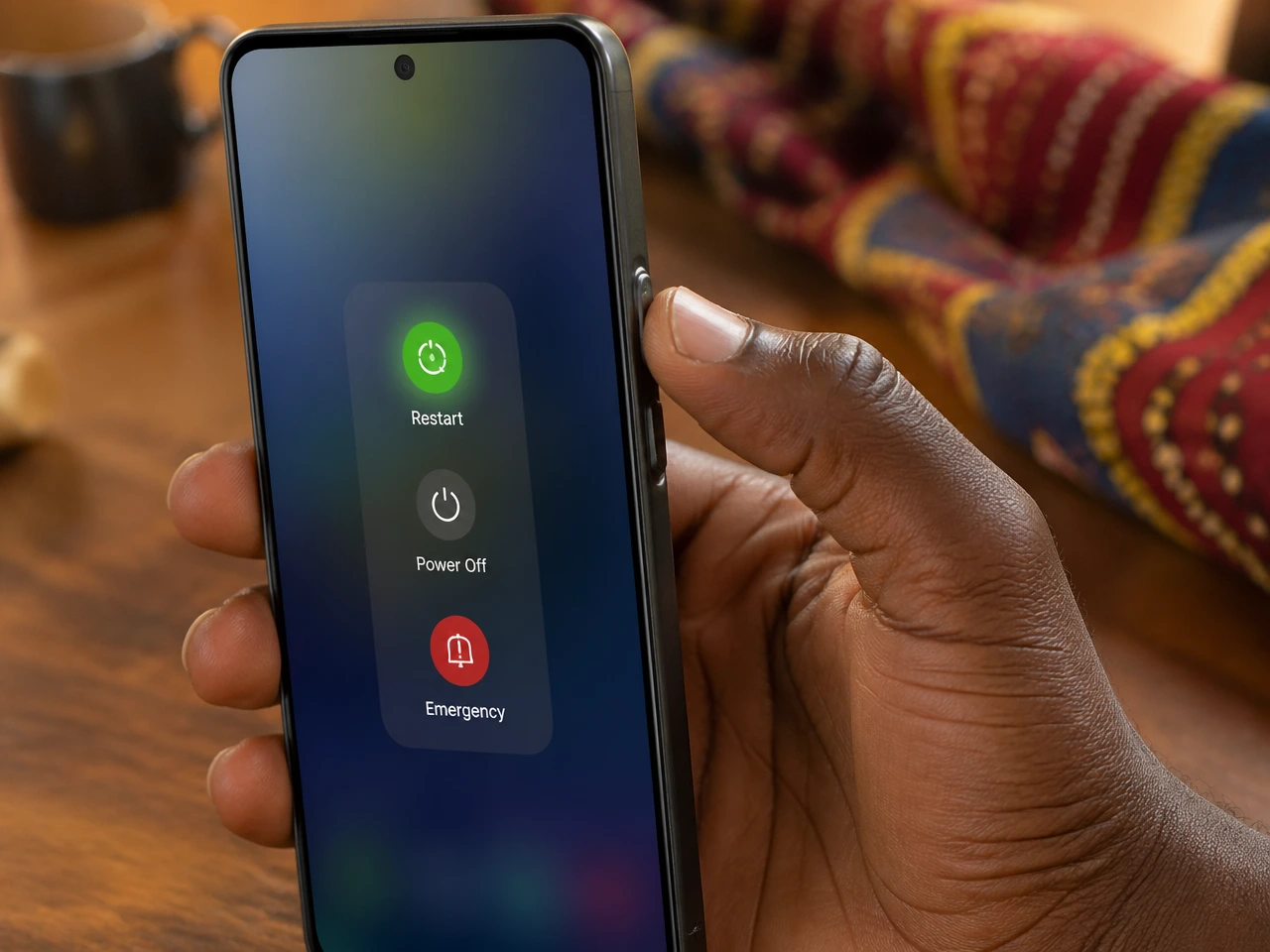
This sounds almost too simple, but it is the most underrated fix. Most Tanzanians charge their phones at night and leave them on for weeks without ever truly restarting them. Your phone accumulates something called memory leaks — background processes that never properly close and keep eating up RAM even when idle.
A full restart clears all of that in seconds. According to Android performance experts, doing a restart at least once a week — or even daily if you are a heavy user — significantly reduces the sluggishness you experience during the day.
How to do it:
- Hold the power button → tap Restart (not just power off and on)
- Some newer Android phones even let you schedule automatic restarts in Settings
Make this a weekend habit — every Saturday morning, let your phone breathe.
Step 2: Delete Apps You Haven't Opened Since Christmas
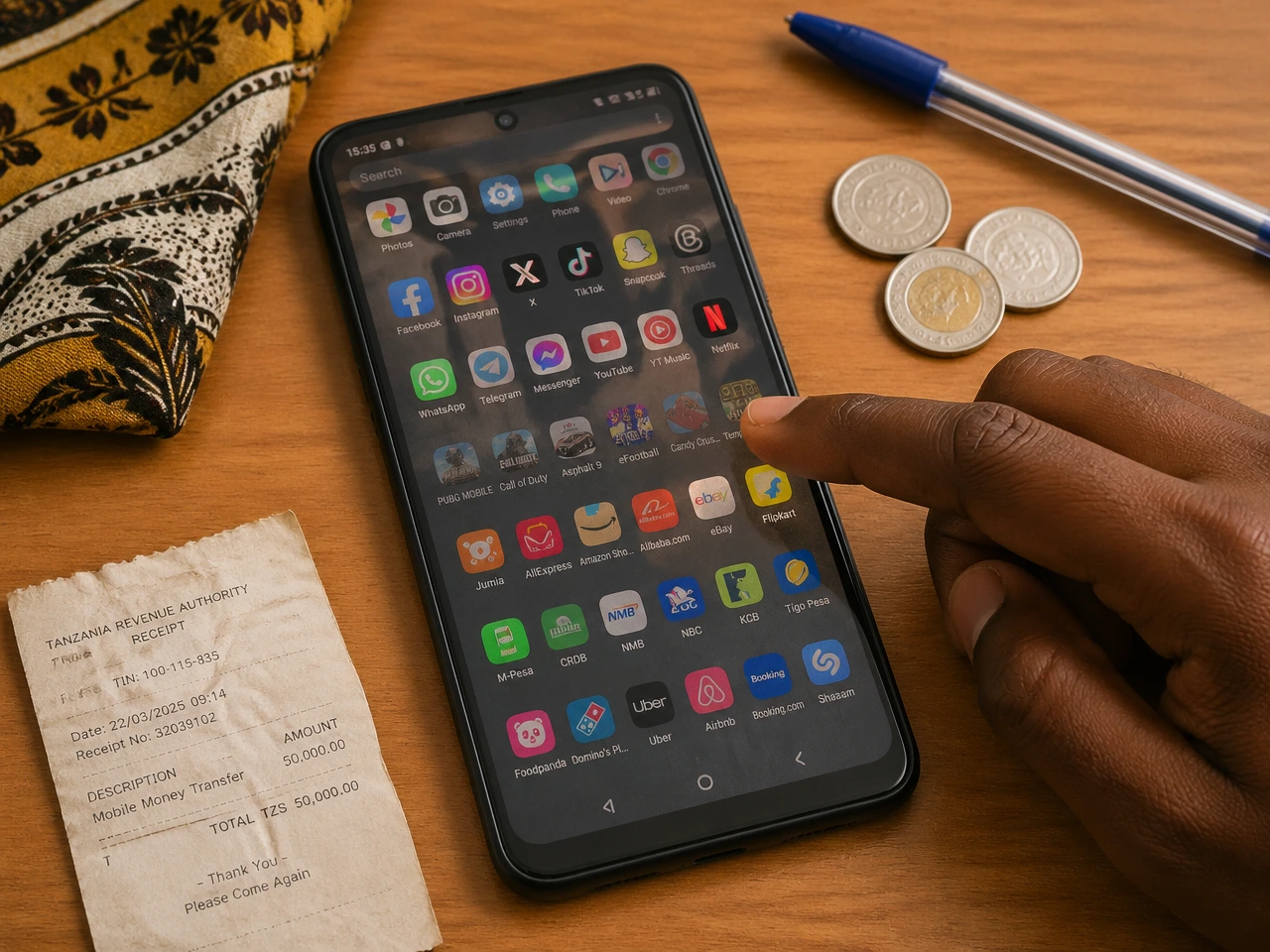
Open your app drawer right now and scroll through it slowly. Be honest with yourself. How many of those apps have you opened in the last 30 days?
That betting app from the World Cup? Gone. The farming app you downloaded for a school project? Gone. That bank app for a bank you no longer use? Delete it.
Android performance researchers have consistently found that unused apps keep running in the background, consuming system resources that could be better used by the apps you actually care about. On lower-end devices, this is particularly painful because the processor was never built with ten background services in mind.
How to uninstall apps:
- Long-press any app icon → tap Uninstall
- Or go to Settings → Apps → [App Name] → Uninstall
The rule of thumb: if you haven't touched it in 30 days and it isn't essential, it goes.
Step 3: Clean Your Storage — Find the Hidden Clutter
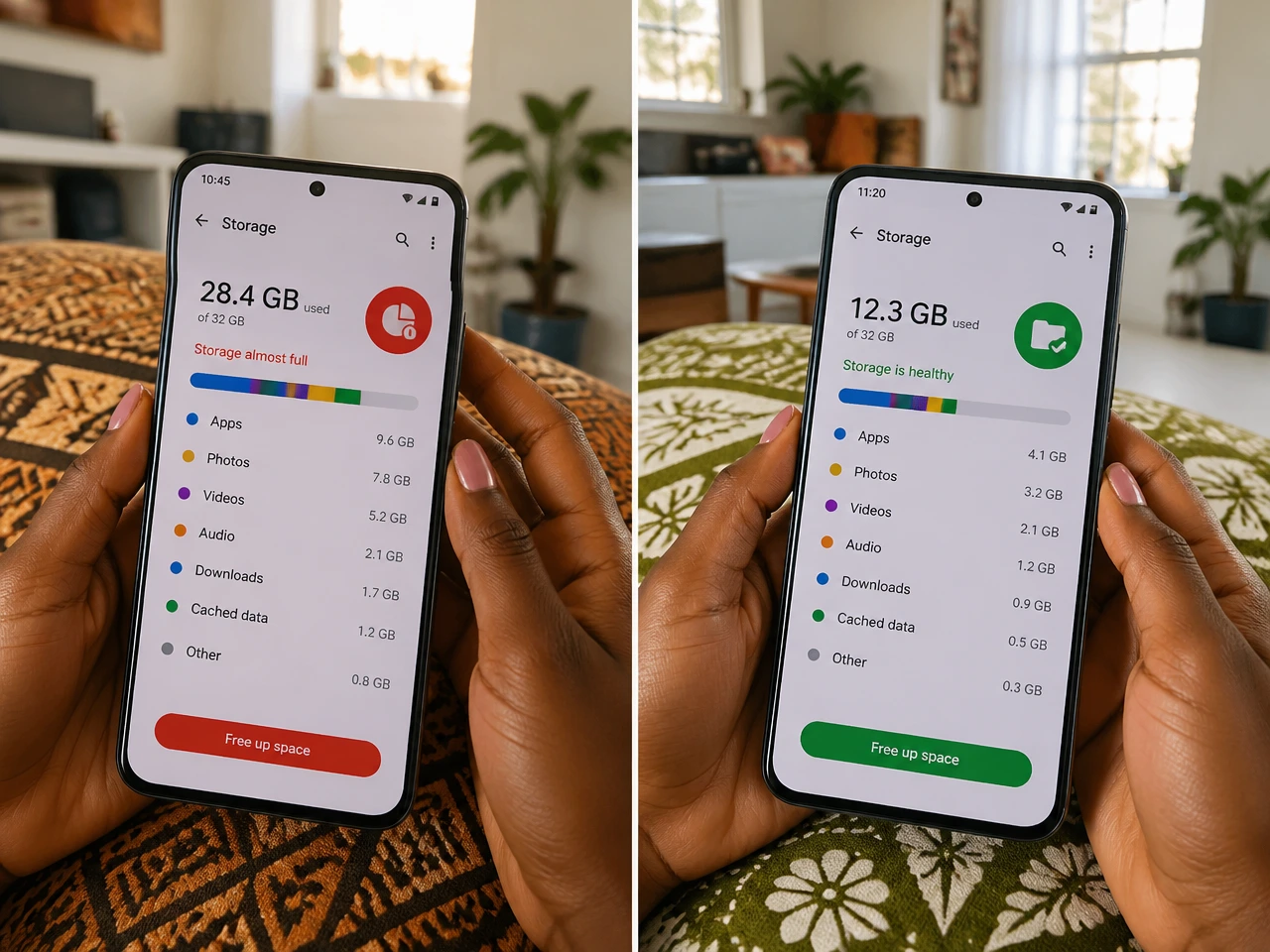
Here is something most people do not realise: your storage fills up fast with leftover downloads — PDFs, memes, screenshots, and random files you saved months ago. When your phone's storage drops below 15-20% of total capacity, the entire system slows down dramatically because the OS needs that free space to operate efficiently.
The best free tool for this? Files by Google — already installed on most Android phones and available free on the Play Store.
What to delete:
- Old PDF documents you've already read
- Duplicate photos (Files by Google finds these automatically)
- Old WhatsApp media (images and videos in WhatsApp/Media folder)
- Downloads folder — this is usually a goldmine of junk
Android experts recommend keeping at least 15% of your storage free at all times for the system to run smoothly. If your phone has 32GB, keep at least 5GB free. If it has 64GB, keep at least 10GB free.
Step 4: Clear Your App Cache — The Digital Dust Buildup
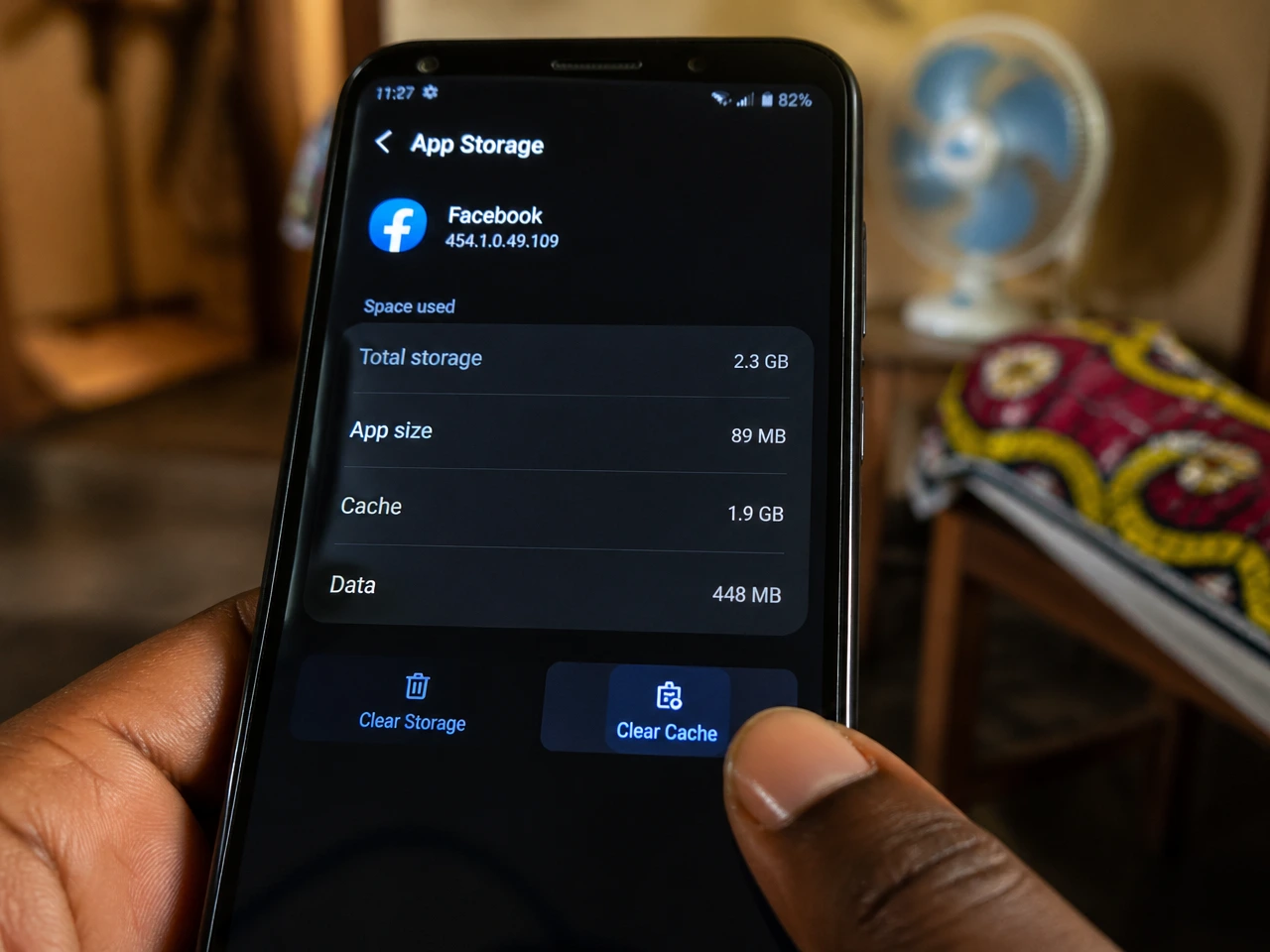
Every app on your phone saves temporary files called cache — little packets of data meant to make the app load faster next time. The problem is that these temporary files accumulate over time and stop being helpful. Instead, they turn into digital clutter that slows the whole system down.
The good news? Clearing cache deletes absolutely none of your personal data. Your photos, messages, and app settings remain completely untouched.
How to clear cache for a specific app:
- Go to Settings → Apps
- Tap on the app (Facebook, YouTube, Chrome, etc.)
- Tap Storage → Clear Cache
To clear all cached data at once:
- Go to Settings → Storage → Free Up Space (the exact wording varies by phone brand)
Users have reported that apps which once took 8 seconds to load now open in under 2 seconds after clearing cache. Do this monthly as part of your phone maintenance routine.
Step 5: The Secret Developer Trick — Turn Off Animations
This is the trick that tech enthusiasts swear by, and it works like absolute magic. Most people have never even heard of it.
Every time you open an app, switch between screens, or close a folder, your Android plays a small animation — things sliding in, fading out, bouncing gently. These animations look nice, but on an older phone, they cause visible stuttering because the processor struggles to render them smoothly. The result? Your phone feels slow even when it's just… animating.
The fix? Turn those animations off completely.
To do this, you first need to unlock Developer Options — a hidden menu inside Android.
Step-by-step:
- Go to Settings → About Phone
- Find Build Number and tap it 7 times in a row
- You'll see a message: "You are now a developer!"
- Go back to Settings → System → Developer Options
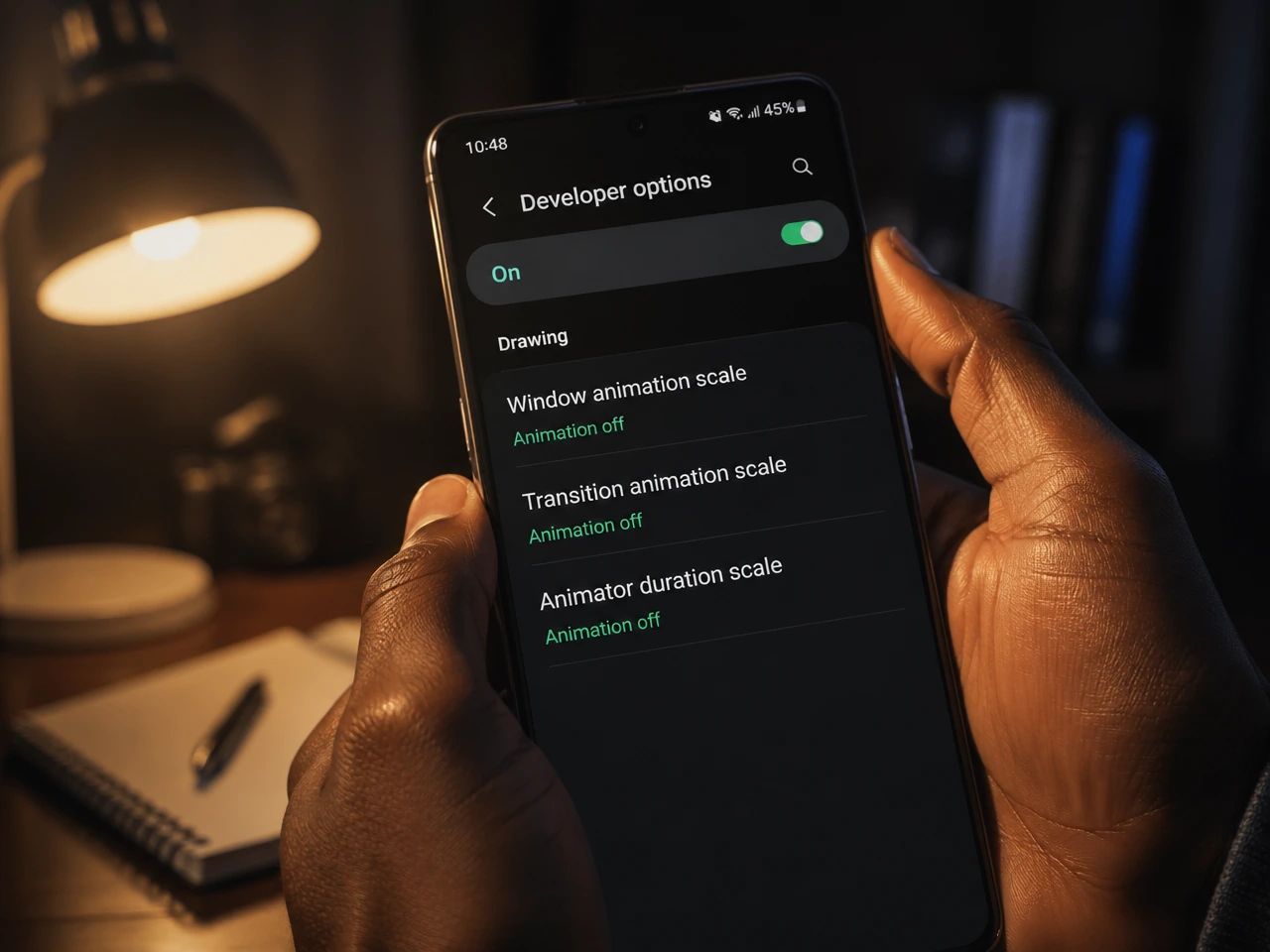
- Scroll down and find these three settings:
- Window animation scale → set to Off
- Transition animation scale → set to Off
- Animator duration scale → set to Off
According to iFixit, one of the most trusted repair and technology platforms in the world, watching your phone struggle through frame-dropping animations makes it feel unreliable and slow — even when the actual hardware can do the job. Turning animations off means things just appear instantly, and your brain registers the phone as fast and responsive.
This single change costs nothing and will make your phone feel dramatically faster — almost like a new device.
Don't worry — this is completely reversible. Just set the scales back to 1x if you ever change your mind.
Step 6: Switch to Lightweight "Lite" Apps
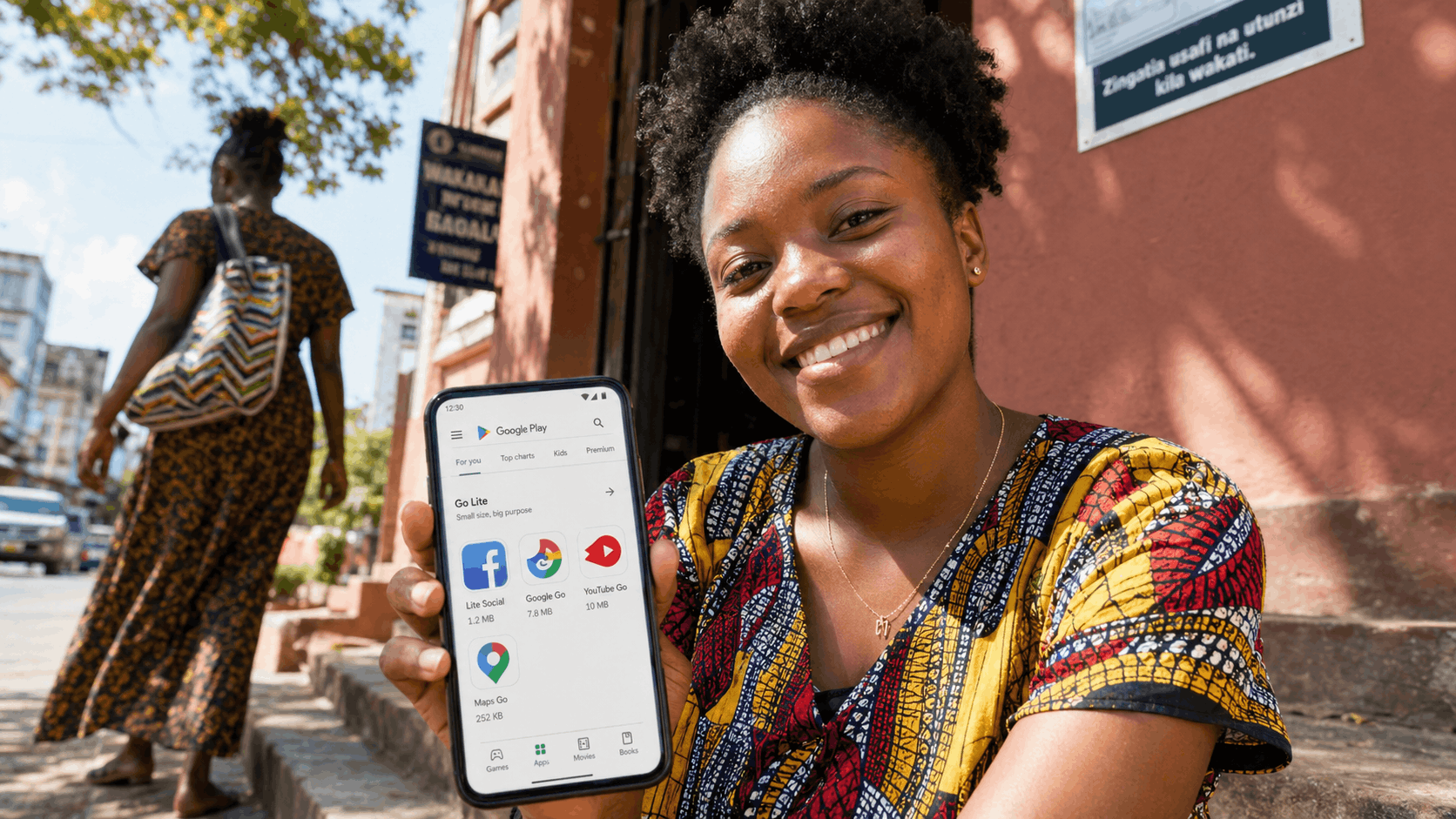
Here is something the regular tech world rarely talks about but is extremely relevant for Tanzania and the rest of Africa: Lite apps exist specifically for you.
Facebook Lite, Messenger Lite, Google Go, YouTube Go, Maps Go — these are stripped-down versions of the apps you already use, designed from the ground up for phones with limited RAM, older processors, and slower internet connections.
Facebook Lite, for example, was originally built for low-end Android phones on 2G connections — a reality that millions of Tanzanians still live with, especially outside of Dar es Salaam, Mwanza, and Arusha. The full Facebook app takes up over 500MB once installed and running. Facebook Lite does the same job in a fraction of the size.
The Lite/Go apps you should install right now:
| App | Replace This | Why It's Better |
|---|---|---|
| Facebook Lite | Tiny size, less RAM, works on slow data | |
| Messenger Lite | Messenger | No games or heavy GIFs, just fast messaging |
| Google Go | Chrome | Saves up to 40% data on searches |
| Maps Go | Google Maps | Lighter navigation for older phones |
| YouTube Go | YouTube | Download videos offline, share locally |
| Gmail Go | Gmail | Runs smoothly on 1GB RAM devices |
These lightweight versions take up less storage and memory on the device, making your phone feel less sluggish — and they're optimized for devices with limited resources. For the average Tanzanian phone user, switching from the bloated full apps to Lite versions might be the single highest-impact change on this entire list.
All of these are free on the Google Play Store.
Step 7: Replace Your Launcher — Give Your Home Screen a Facelift
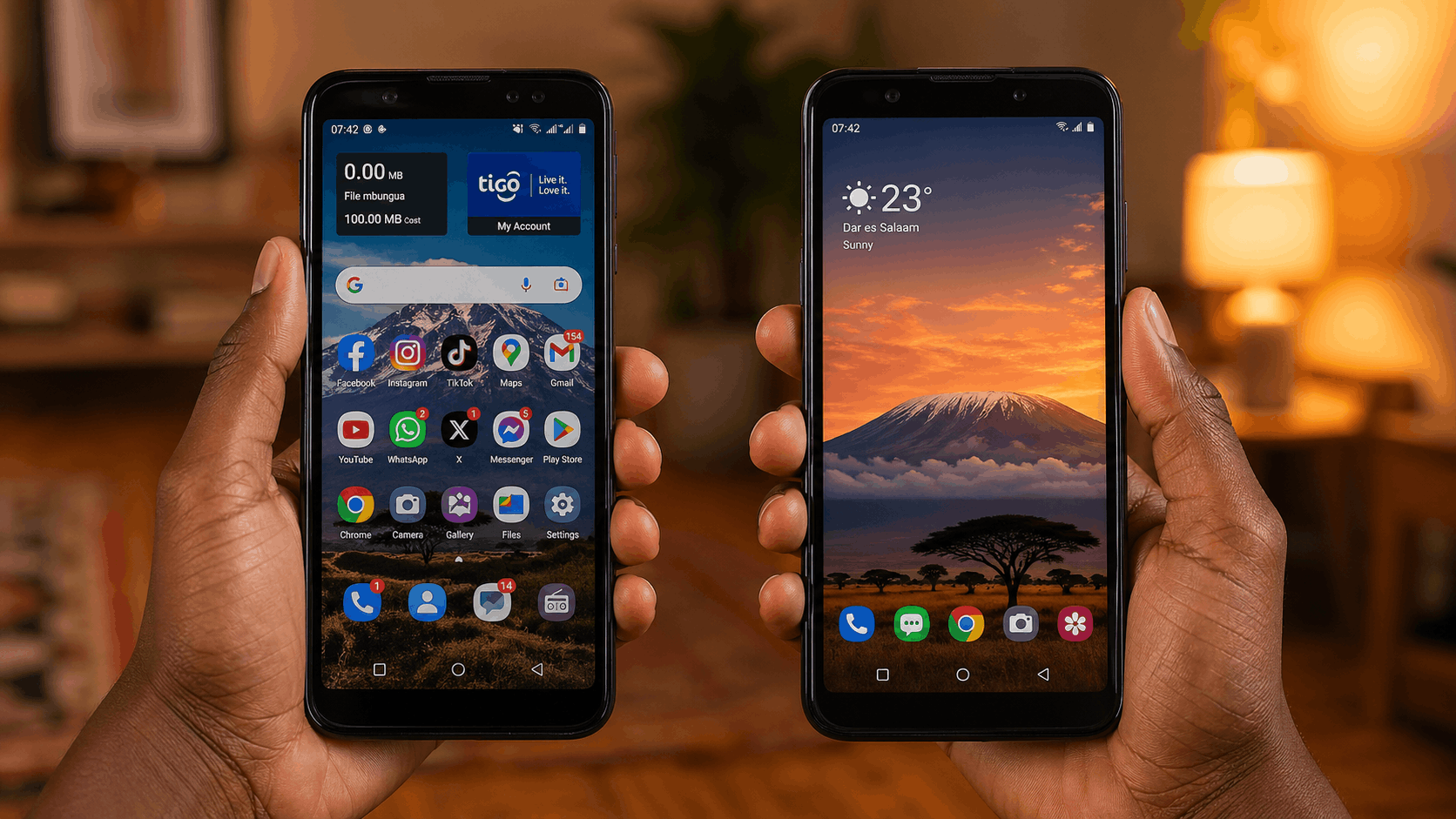
Your phone's launcher is the app that controls your home screen — the icons, the wallpaper, the app drawer. The default launcher that came with your phone (especially on budget Tecno, Itel, or older Samsung devices) is often stuffed with advertisements, heavy widgets, and unnecessary animations that slow things down.
Replacing it with a lightweight launcher can transform how your phone looks and how fast it feels.
The top recommendation for 2026:
- Lawnchair Launcher — Free, open-source, clean, and based on the Pixel Launcher design. Available on the Play Store. Zero ads.
- Smart Launcher 6 — Beginner-friendly, automatically categorizes your apps, very lightweight. Great for someone who just wants a cleaner experience without complexity.
- Niagara Launcher — Uses a vertical list design, excellent for one-handed use, fast and minimal. Perfect if you want something radically different.
After installing a new launcher, take 10 minutes to reorganize your home screen. Remove widgets you never use. Keep only your most-used apps on the main screen. You will be shocked at how "new" your phone feels just from this visual refresh.
Step 8: Enable Dark Mode + Adaptive Battery
Two simple toggles that will noticeably extend your phone's battery life throughout the day.
Dark Mode
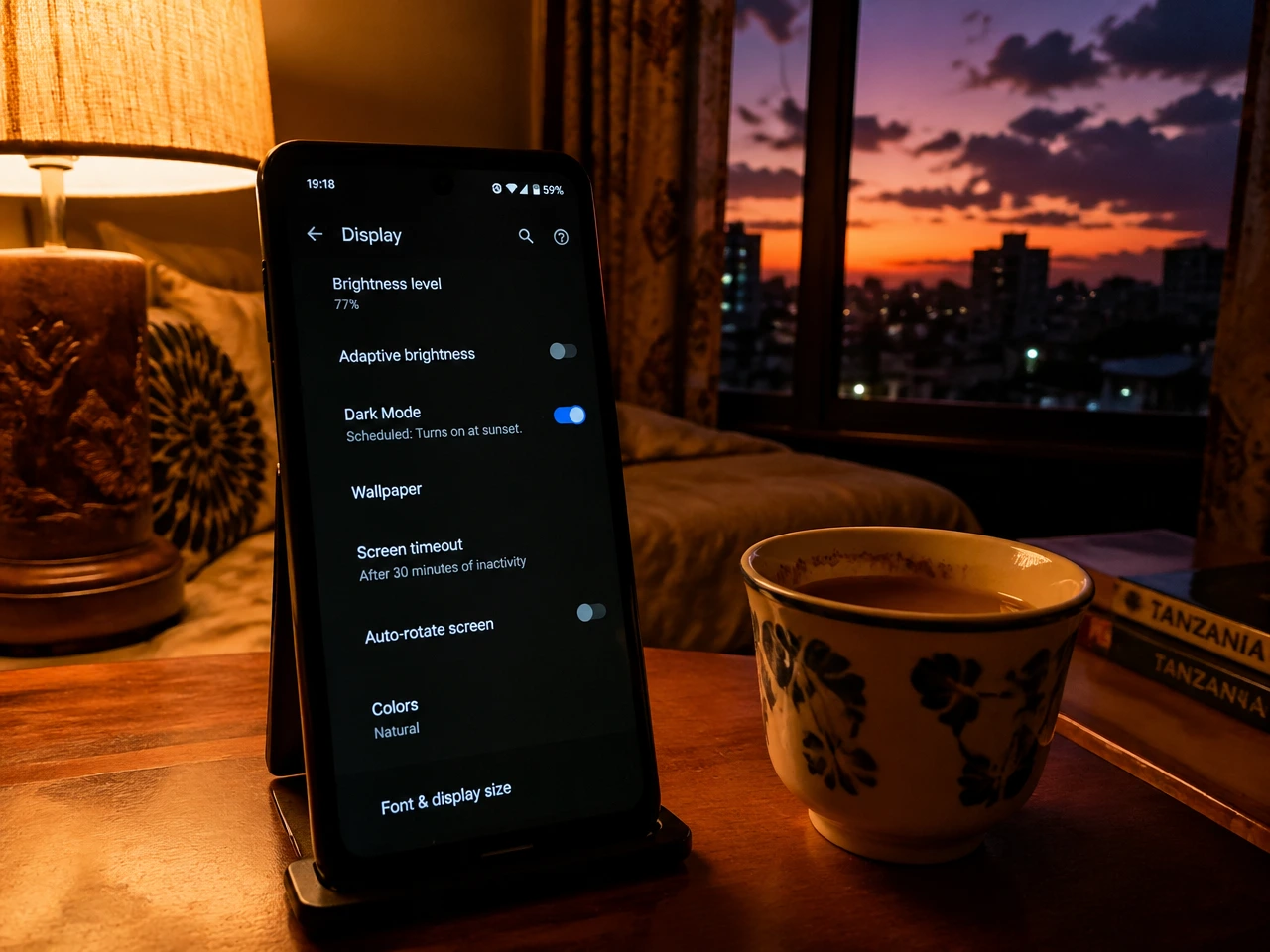
If your phone has an AMOLED screen — which includes most Samsung Galaxy A-series, Infinix, and Tecno phones — then black pixels literally turn off completely. This means dark mode is not just easier on your eyes at night; it's actually saving power with every dark screen you look at.
Google itself confirms that Dark theme uses less battery and helps extend your device's battery life. Combine this with a darker wallpaper and you will notice your battery percentage dropping more slowly throughout the day.
How to enable Dark Mode:
- Settings → Display → Dark Mode (toggle on)
- Set it to turn on automatically at sunset for convenience
Adaptive Battery
Adaptive Battery uses machine learning to learn your usage habits, limit low-priority apps, and stretch your battery further. It figures out which apps you rarely use and stops them from quietly draining your battery in the background.
How to enable it:
- Settings → Battery → Adaptive Battery → toggle on
Research shows that unrestricted social apps alone can consume nearly 18% of daily battery power. Adaptive Battery takes care of these silent power thieves automatically.
Step 9: Keep Your Phone Updated
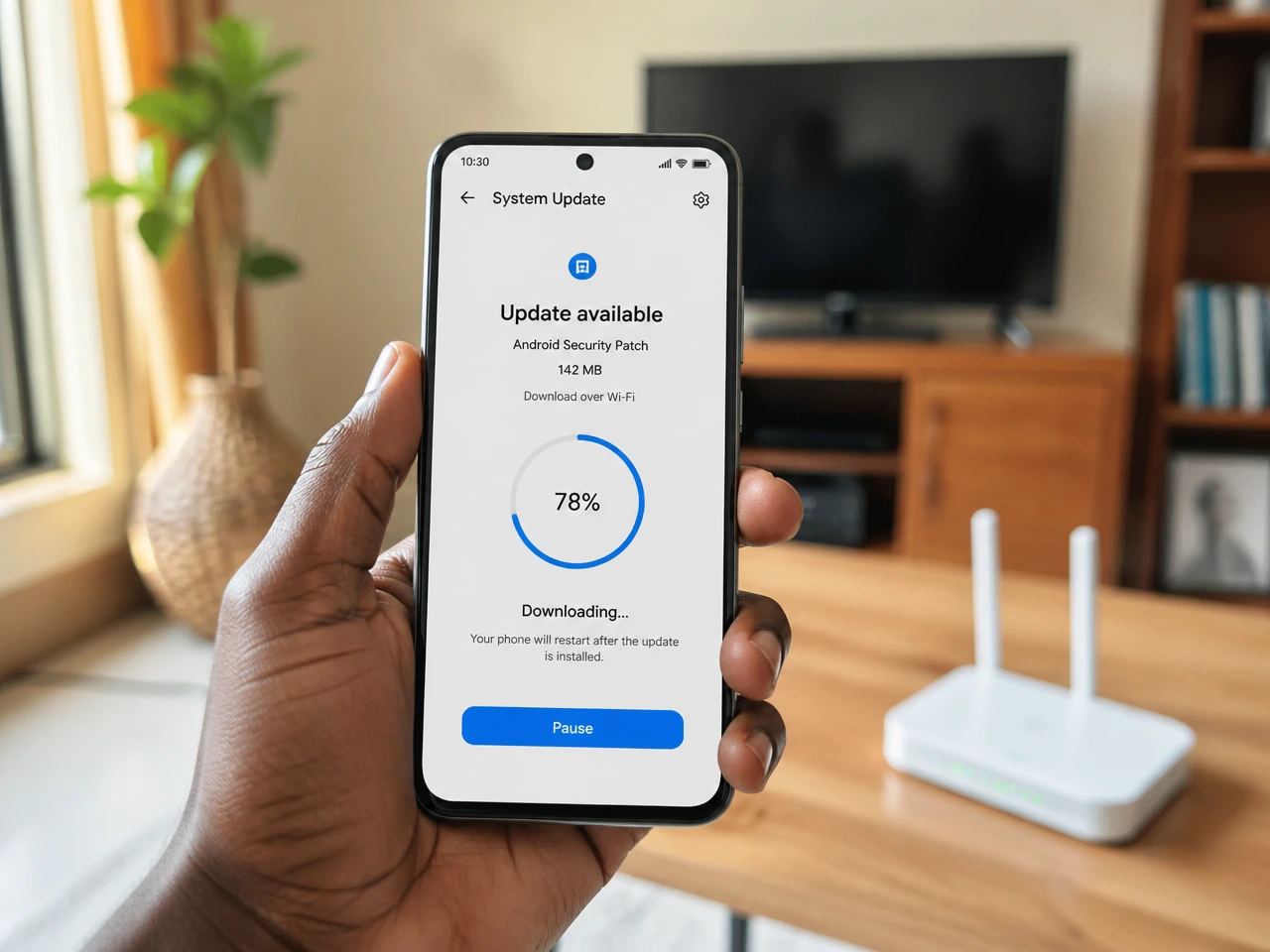
Many Tanzanians skip software updates because they fear it will slow the phone down, use up data, or change things they're used to. But the opposite is actually true.
Software updates frequently include performance improvements and bug fixes that can make your phone run better — especially for older devices. Google and phone manufacturers specifically optimize new updates to handle the apps people are using right now, not the apps from three years ago.
How to check for updates:
- Settings → System → System Update (check for OS updates)
- Google Play Store → Profile icon → Manage Apps & Device → Update All (update all apps)
Pro tip: Download updates on Wi-Fi (like at home, at the office, or at a café) to avoid burning through your mobile data.
Step 10: Build a Weekly Maintenance Routine
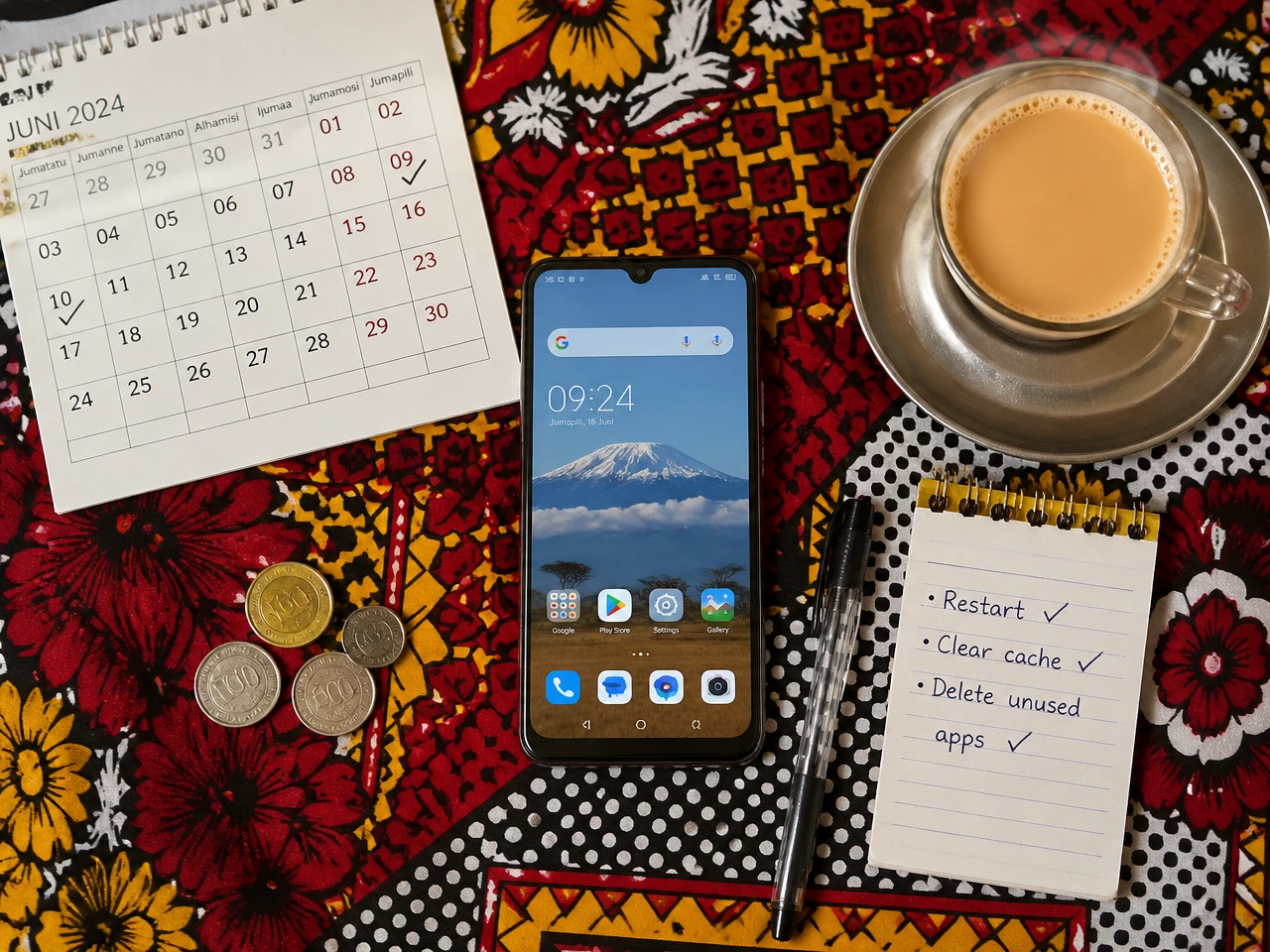
The biggest reason phones get slow isn't a single event — it's months of neglect. The fix isn't a single cleanup either. It's developing a simple habit.
Here is a 5-minute weekly routine that will keep your phone running smoothly:
Every week (Sunday evening works well):
- ✅ Restart your phone
- ✅ Delete WhatsApp media you don't need
- ✅ Check your Downloads folder for junk
Every month:
- ✅ Clear app cache for heavy apps (Facebook, YouTube, Chrome)
- ✅ Review your installed apps and delete unused ones
- ✅ Check storage — keep at least 15% free
- ✅ Check for system updates
This is the digital equivalent of cleaning your room. Do it regularly, and you'll never need a dramatic rescue operation again.
The Bottom Line: Your Phone Has More Life Left
Buying a new phone when your current one slows down is an expensive reflex — and in Tanzania, where most of us are working within real budget constraints, it's a cost that's completely avoidable.
The ten steps in this guide don't require a technician, a USB cable, a secret code, or a single shilling. They require only your time — about an hour on the first go, and five minutes a week after that.
Start today with the biggest wins:
- Turn off animations (Developer Options)
- Switch to Lite apps (Facebook Lite, Google Go)
- Clear your storage and cache