Most people use only about 10% of what their devices can actually do.
Meanwhile, your phone and laptop are quietly packed with built-in tools that can save time, organize your life, protect your accounts, and make everyday work dramatically easier — without installing a single extra app.
The wild part? Most users never discover them.
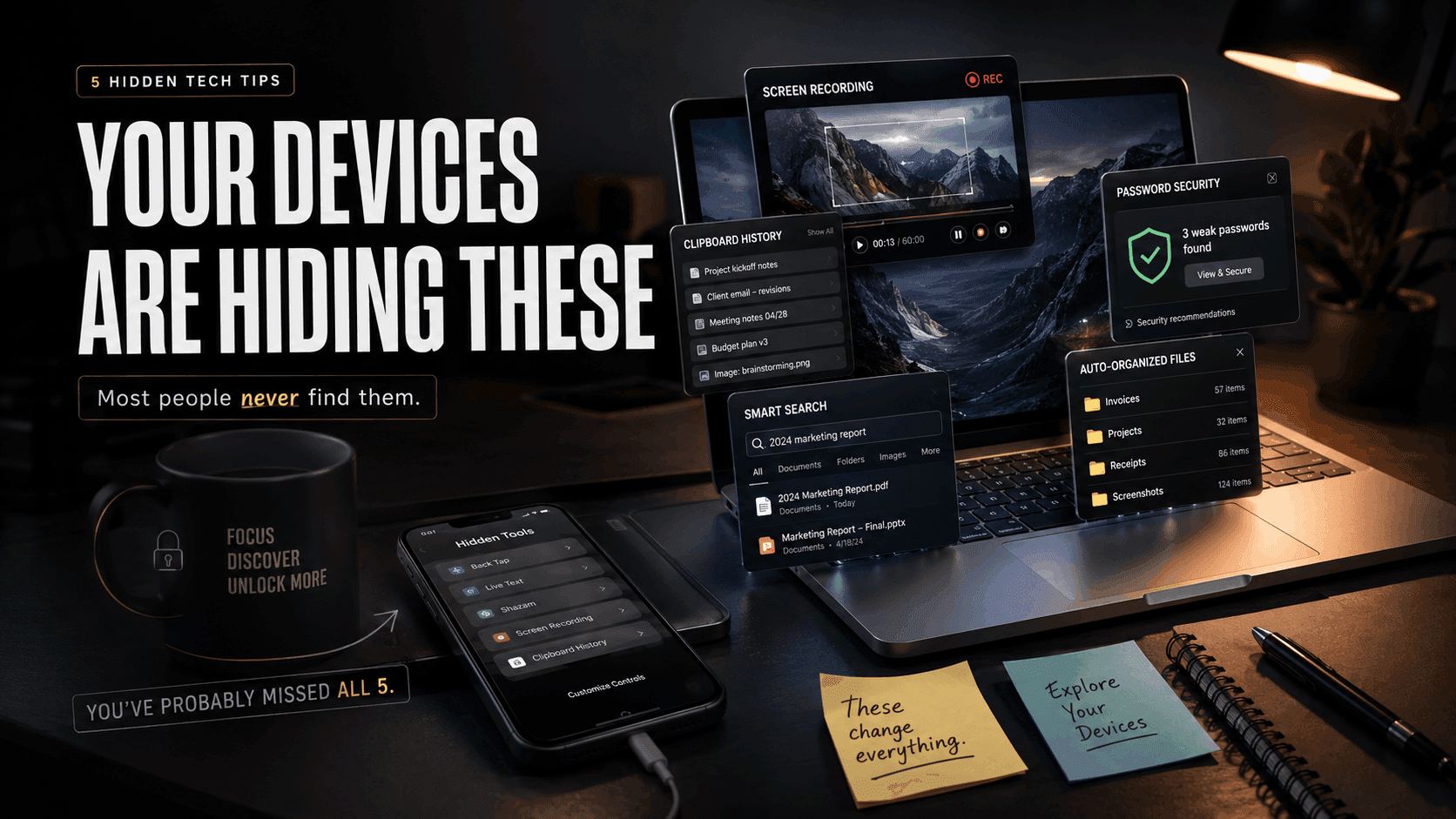
Here are five hidden tech features already sitting inside your devices right now that can instantly upgrade how you work, browse, and stay organized.
1. Your Device Already Has a Built-In Screen Recorder


Most people still download third-party apps just to record their screens.
But modern phones and laptops already include powerful screen recording tools — completely free.
On Windows
Windows 11 includes screen recording through the Snipping Tool and Xbox Game Bar.
You can:
- Record tutorials
- Capture bugs for tech support
- Save online meetings
- Record gameplay
- Create quick walkthrough videos
Quick shortcut:
Press Windows + G to open Xbox Game Bar.
On Mac
macOS has a hidden shortcut many users never learn:
Press:
Command + Shift + 5
You can:
- Record the full screen
- Record a selected area
- Capture screenshots
- Set timers and save locations
On iPhone
Many iPhone users accidentally discover screen recording years after owning the device.
To enable it:
- Go to Settings
- Control Center
- Add “Screen Recording”
Then swipe down from the top-right corner and tap record.
On Android
Most modern Android phones now include screen recording directly in Quick Settings.
No extra app required.
2. Gmail and Google Drive Have Secret Search Powers


Most people search for files and emails like this:
“invoice”
“photo”
“meeting”
Then scroll endlessly.
But your apps support advanced search commands that feel almost like magic once you know them.
Gmail Search Tricks
Try these inside Gmail:
from:johnhas:attachmentolder_than:1ylabel:workfilename:pdf
Example:
textfrom:sarah has:attachment filename:pdf
That instantly finds PDFs sent by Sarah.
Google Drive Tricks
Inside Google Drive, you can search by:
- File type
- Owner
- Date modified
- Shared status
Example:
texttype:spreadsheet
Or:
textowner:me
Windows File Explorer
Search:
textkind:=picture
Or:
textdate:today
Mac Finder
Finder also supports filters like:
- File type
- Last opened
- Tags
- Date modified
These tiny tricks save massive amounts of time over a year.
3. Clipboard History Lets You Copy Multiple Things at Once


Most people think copy-paste only remembers one thing.
Not anymore.
Modern devices can store multiple copied items in clipboard history.
Once you start using this feature, normal copy-paste feels ancient.
On Windows
Press:
textWindows + V
The first time, Windows asks you to enable Clipboard History.
After that:
- Copy multiple texts
- Reuse links
- Paste older items
- Pin frequently used snippets
Perfect for:
- Students
- Writers
- Developers
- Virtual assistants
- Remote workers
On Android
Many Android keyboards like Gboard include clipboard history built in.
You can:
- Save copied text
- Pin important snippets
- Reuse frequently pasted messages
On Mac and iPhone
Apple is more limited natively, but Universal Clipboard lets you copy on one Apple device and paste on another.
Example:
- Copy text on iPhone
- Paste instantly on MacBook
It feels futuristic the first time you try it.
4. Your Browser May Already Warn You About Leaked Passwords


One of the most important security tools today is already built into your browser or phone.
Most people simply never open it.
In Google Chrome
Chrome can automatically detect if your saved passwords appeared in known data breaches.
To check:
- Open Chrome Settings
- Password Manager
- Checkup
Chrome will warn you if:
- Passwords are weak
- Passwords are reused
- Passwords were leaked online
On iPhone
Apple includes a hidden security feature called Security Recommendations.
Go to:
- Settings
- Passwords
- Security Recommendations
Your iPhone can alert you if:
- Passwords were exposed in breaches
- Passwords are reused
- Passwords are easy to guess
This is one of the easiest ways to improve your online security in under five minutes.
5. Your Computer Can Auto-Sort Your Messy Files


If your Downloads folder looks like digital chaos, you’re not alone.
Most people manually organize files forever — or never organize them at all.
But your operating system already includes automation tools.
On Windows
Use:
- File Explorer sorting
- Libraries
- Automatic grouping
- Power Automate
You can auto-group files by:
- Date
- File type
- Size
- Name
Example:
- PDFs together
- Screenshots together
- Videos together
On Mac
macOS includes:
- Smart Folders
- Tags
- Stacks for desktop cleanup
Desktop Stacks automatically group files into categories like:
- Images
- PDFs
- Screenshots
- Documents
To enable:
- Right-click desktop
- Use Stacks
Instant cleanup.
Final Thought
The funny thing about modern tech is this:
Most people keep downloading more apps to solve problems their devices already solved years ago.
Your phone and laptop are full of hidden productivity tools, organization systems, and security features quietly waiting to be turned on.
And once you start using them, it’s hard to go back.