Most people use Google every single day.
But very few actually know how to use it.
Think about that for a second.
We open Google when we need answers fast — yet somehow we end up spending twenty minutes clicking through pages that have nothing to do with what we were looking for. We open ten tabs, get distracted, rewrite the same search three different ways, and still don't find what we need.
And if you're in Tanzania where mobile data costs real money, wasting time online means wasting bundles too.
Whether you're a university student chasing research, a job seeker looking for opportunities, a freelancer hunting for clients, or just someone trying to get things done faster — smarter searching quietly changes everything.
The good news? You don't need to be a tech person to use these tricks.
Google already has powerful shortcuts built right in. Most people just never use them. Once you do, going back to normal searching feels painfully slow.
Why Most People Search the Hard Way
Here's what a typical Google search looks like:
best laptop
Too broad.
Google then has to guess what you actually mean. Gaming laptop? Student laptop? Budget laptop? Available in Tanzania? The more vague your search, the more Google guesses — and the more irrelevant results you get.
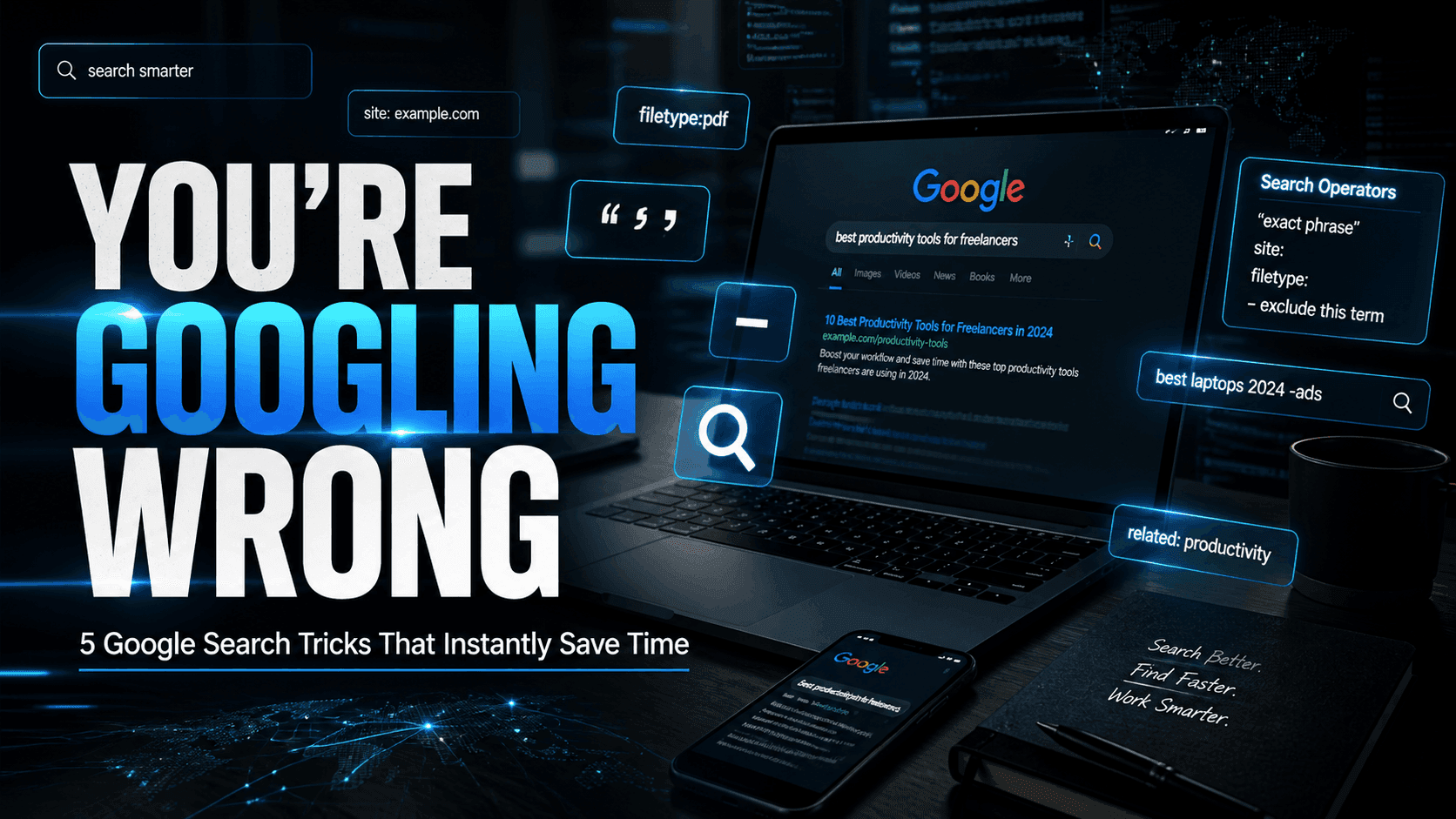
Beyond typing better questions, Google also supports search operators — small commands that sharpen your results instantly. Google officially documents these in its advanced search help, yet most people have never heard of them.
Here are the five most useful ones.
Trick #1: Put It in Quotes to Get Exact Results
The trick:
Wrap your search phrase in quotation marks.
"online jobs in Tanzania"
Why it works:
Without quotes, Google splits your words apart and matches them individually across different parts of a page. That's why you sometimes get results that technically contain all your words — but in a way that's completely useless.
Quotation marks tell Google: show me pages where this exact phrase appears, word for word. According to Google's advanced search documentation, this is one of the most reliable ways to narrow down results fast.
Real-life use:
Say you're looking for a specific scholarship name, a company announcement, or an exact error message from your phone. Without quotes, you'll dig through pages. With quotes, Google cuts straight to it.
This works great for:
- Finding specific academic papers or journal titles
- Checking whether someone copied your content
- Locating exact government announcements
- Searching song lyrics when you only remember a line
Time saved: Less scrolling, less guessing, less clicking random links hoping one of them is right.
Trick #2: Search Inside a Specific Website with site:
The trick:
site:website.com your topic
Examples:
scholarships site:go.tz
loan requirements site:crdbbank.co.tz
AI trends site:forbes.com
Why it works:
A lot of websites have terrible internal search functions. Slow, clunky, unhelpful. Instead of fighting their search bar, you let Google do the work — but only inside that one website.
Google treats the site: operator as a domain filter, showing you only results from the domain you specify. It's one of the fastest ways to pull specific information from a site you already trust.
Real-life use:
Instead of clicking through confusing bank menus or navigating a government portal that hasn't been updated since 2015 — just type:
loan requirements site:crdbbank.co.tz
Done in seconds.
This is incredibly useful for:
- University portals and academic websites
- Tanzanian government sites (.go.tz)
- News archives (BBC, The Citizen, IPP Media)
- Developer documentation
- Company policy pages
Time saved: You skip the navigation maze and land directly on what you need.
Trick #3: Block Annoying Results with the Minus Sign -
The trick:
Add a minus sign before any word you want Google to exclude.
budget smartphones -iPhone
football highlights -TikTok
database notes -YouTube
Why it works:
Sometimes Google keeps showing you the same irrelevant results no matter how you rephrase your search. Pinterest boards when you want articles. TikTok links when you want written content. Old pages from 2016 when you need something current.
The minus sign tells Google: don't show me anything that includes this word. Google's search help confirms this exclusion feature works across most standard searches.
Real-life use:
A student searching for study notes keeps getting YouTube videos instead. One small change fixes it:
database management notes -YouTube
A job seeker searching for remote work keeps seeing expired listings from one specific site:
remote data entry jobs -indeed.com
Simple. But the difference in results is dramatic.
Time saved: You stop wading through results you already know you don't want.
Trick #4: Find PDFs and Documents Directly with filetype:
The trick:
filetype:pdf
filetype:docx
Examples:
CV template filetype:pdf
Tanzania national budget 2025 filetype:pdf
business proposal template filetype:docx
Why it works:
Google can filter search results by file type. Instead of landing on blog posts that talk about CVs, you get the actual downloadable CV template. According to Google's advanced search references, the filetype: operator is one of the most precise ways to pull specific document formats directly from the web.
Real-life use:
This one is a game-changer for anyone in Tanzania who regularly searches for:
- Past exam papers
- Government tender documents
- Business registration forms
- Academic research PDFs
- Company financial reports
Instead of scrolling through ten articles that bury the download at the very bottom, you get the file straight away.
Time saved: No unnecessary clicking. No hunting through blog posts for a hidden download button. Just the resource itself.
Trick #5: Filter by Date So Your Results Are Actually Relevant
The trick:
After running any search, click Tools → Any Time and select a time range — past hour, past day, past week, past month, or past year.
You can also use date operators directly in the search bar:
Tanzania startup funding after:2024-01-01
Why it works:
Google doesn't automatically show you the most recent results. It shows you what it thinks is most relevant — which can sometimes mean pages from five years ago. For fast-moving topics like tech, business news, job listings, or current events, outdated results are worse than no results at all.
Curivue's breakdown of Google search operators highlights time filtering as one of the most overlooked but immediately impactful search habits — especially for anyone tracking current trends or news.
Real-life use:
Searching for the latest mobile money regulations? The best smartphones available right now? Job listings posted this month? Time filtering stops Google from serving you a 2019 article as if it's fresh news.
mobile money regulations Tanzania after:2024-01-01
Time saved: You stop reading outdated information and making decisions based on things that no longer apply.
One Habit That Quietly Wastes More Time Than You Think
Here's something most people skip over:
They open Google before they even know what they're looking for.
So they type something vague, get confused results, rephrase it, get slightly less confused results, open eight tabs, forget what they were originally searching for — and forty minutes later, they're watching a video about something completely unrelated.
Before you type anything, ask yourself:
- What exactly am I trying to find?
- Do I need an article, a PDF, or a specific website?
- Which results do I want to avoid?
- Which site probably has the most reliable answer?
That ten-second pause before searching is often the difference between a two-minute search and an internet rabbit hole.
Final Thoughts
The internet rewards people who know how to navigate it.
That's becoming more true every year — not less.
The difference between someone who finds what they need in two minutes and someone who spends an hour going in circles usually isn't intelligence or technical skill.
It's search habits.
And the five tricks above aren't complicated. They're just small, deliberate changes to how you type. Use them consistently for a week and you'll start noticing how much time you were leaving on the table.
So the next time you sit down to search for something, pause before you start typing.
Are you actually searching — or are you just hoping Google reads your mind?
And if a few small search tricks can save you hours every week...
What other digital habits are quietly wasting your time without you even noticing?